

【Chapter 8】 Xray Clients
8.1 Brief Description of Xray's Working Principles
To configure and use Xray correctly, you need to properly understand how it works. For newcomers, you can first take a look at the simplified diagram below (many complex settings have been omitted):
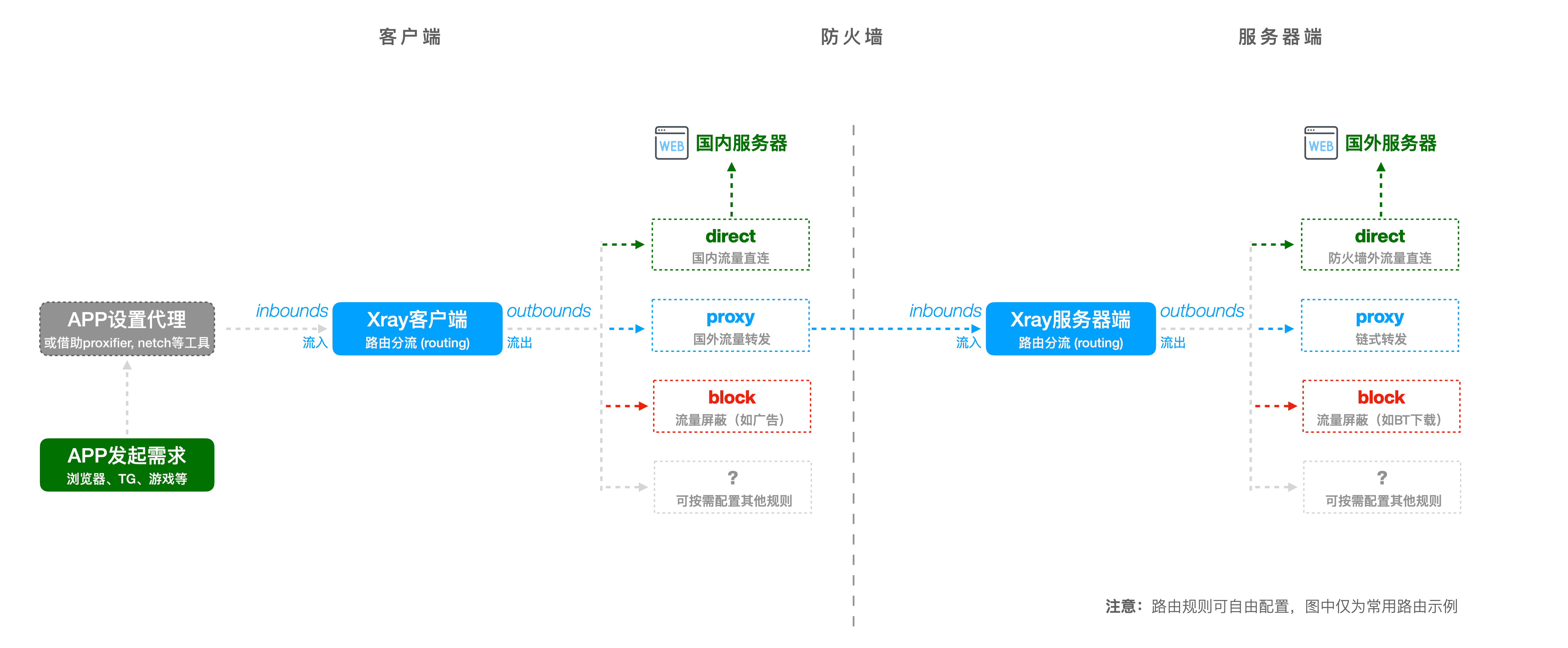
The key points are:
Apps must, either actively or via a forwarding tool, send data so it [flows in (
inbounds)] to theXrayclient.After traffic enters the client, it is processed by the [Client Routing (
routing)] according to rules, and then sent to [flow out (outbounds)] of theXrayclient in different directions. For example:- Domestic traffic connects directly (
direct). - Foreign traffic is forwarded to the VPS (
proxy). - Ad traffic is blocked (
block).
- Domestic traffic connects directly (
Foreign traffic forwarded to the VPS will cross the firewall and [flow in (
inbounds)] to theXrayserver-side.After traffic enters the server-side, just like on the client, it is processed by the [Server Routing (
routing)] according to rules, and then sent to [flow out (outbounds)] in different directions:- Since it is already outside the firewall, traffic connects directly by default, allowing you to access those "non-existent" websites (
direct). - If you need to perform chained forwarding between different VPSs, you can continue to configure forwarding rules (
proxy). - You can continue to disable various traffic you want to ban on the server side, such as ads, BitTorrent downloads, etc. (
block).
- Since it is already outside the firewall, traffic connects directly by default, allowing you to access those "non-existent" websites (
Note
Please remember that Xray's routing configuration is extremely flexible. The explanation above is just one of infinite possibilities.
With the help of the geosite.dat and geoip.dat files, you can flexibly control the direction of traffic outflow from the perspectives of [Domain Name] and [IP], leaving no blind spots. This is much, much more powerful than the old, singular, and generalized GFWList, allowing for very fine-grained tuning: for example, you can specify Apple domains to connect directly or be forwarded, Amazon domains to be proxied or forwarded, Baidu domains to be blocked, etc...
Now, 《Analysis of the Routing Feature》 is online. I suggest that students interested in routing functions continue to follow this article to complete the basic client configuration first, and then go there for detailed learning.
8.2 Connecting Client and Server Correctly
Now that you understand how Xray works, the next configuration step is simply [telling your client how to connect to the VPS server]. This is exactly the same as what you are already familiar with: telling PuTTY how to remotely connect to a server. The only difference is that the connection elements for Xray are more than just the four elements of [IP Address] + [Port] + [Username] + [Password].
In fact, Xray's connection elements are determined by different protocols. In the config.json configuration file in Chapter 7, we used the unique and powerful VLESS protocol + XTLS flow control found in Xray. So, looking at the content of that configuration file, we know the connection elements for this protocol combination are:
- Server [Address]:
a-name.yourdomain.com - Server [Port]:
443 - Connection [Protocol]:
vless - Connection [Flow]:
xtls-rprx-vision(vision mode is suitable for all platforms) - Connection [Authentication]:
uuiduuid-uuid-uuid-uuiduuiduuid - Connection [Security]:
"allowInsecure": false
Given that newcomers generally use mobile apps or GUI clients on computers, I have listed common clients below. Each client has its own unique configuration interface, and it is not realistic to take screenshots of each one. Therefore, please be sure to read the instructions for these clients carefully, and then fill in the above elements in the appropriate places.
Note
Many tools actually support both xray-core and v2fly-core simultaneously, but the default built-in core may vary. Don't forget to check if the one you want is the one working!
v2rayN - Suitable for Windows Platform
- Please get the latest version from its GitHub Repository Release Page
- Please configure according to the client's instructions
v2rayNG - Suitable for Android Platform
- Please get the latest version from its GitHub Repository Release Page
- Please configure according to the client's instructions
Shadowrocket - Suitable for iOS, and macOS with Apple M chips
- You need to register a [Non-Mainland China] iCloud account
- You need to search for and purchase it in the App Store
- Please configure according to the client's instructions
Qv2ray - Cross-platform GUI, suitable for Linux, Windows, macOS
- Please get the latest version from its GitHub Repository Release Page (You can also find newer versions from its GitHub Actions builds)
- Please study the documentation from its Project Homepage
- Please configure according to the client's instructions
V2RayXS - A macOS client using xray-core, based on V2RayX
- Please get the latest version from its GitHub Repository Release Page
- Supports one-click import of VMessAEAD / VLESS Share Link Standard Proposal as standard share links
- Please configure according to the client's instructions
At this step, your full set of configurations is ready for normal use!
8.3 Bonus Task 1: Manually Configuring xray-core on PC
Although you could stop at the previous step, if you are a student with strong curiosity and a good memory, you will definitely recall that I said in the previous chapter: "Put the xray-core binary on the server and run it, and it is the server-side; download it to your local computer and run it, and it is the client." So, how exactly do you use xray-core directly as a client?
To answer this question, I added this bonus chapter. It's a bit beyond the syllabus and a bit troublesome, but I spent the ink on this because this method has its advantages:
- Get the latest version immediately without waiting for APP updates and adaptations.
- Flexible and free routing configuration capabilities (Of course, the advanced routing editor in the GUI client Qv2ray is also very powerful and can fully implement xray-core's routing configuration functions).
- Save system resources (GUI interfaces will inevitably consume resources; the amount depends on the client's implementation).
Its disadvantage is probably that [hand-writing configuration files] is a bit troublesome. But actually, think about it, you have already successfully written it once on the server, so what is the difference now? Next, as usual, let's break down the steps:
First, please get the version for your platform from the official Xray GitHub Repository Release Page and unzip it to a suitable folder.
Create a blank configuration file in that folder:
config.json. (I surely don't need to nag about how to create a new file on your OS).As for what constitutes a "suitable folder"? That depends on the specific platform~
Fill in the client configuration.
- I will use the three basic categories of traffic splitting demonstrated in the
8.1principle explanation (Domestic traffic direct, International traffic forwarded to VPS, Ad traffic blocked), combined with the connection elements from8.2, to write a configuration file. - Please replace
uuidwith theuuidconsistent with your server. - Please replace
addresswith your real domain name. - Please replace
serverNamewith your real domain name. - Explanations for each configuration module have been (very verbosely) placed on the corresponding configuration points.
json// REFERENCE: // https://github.com/XTLS/Xray-examples // https://xtls.github.io/config/ // A common config file, whether for server or client, has 5 parts. plus Newbie interpretation: // ┌─ 1_log Log Settings - What to write, where to write (evidence for troubleshooting) // ├─ 2_dns DNS Settings - How to query DNS (prevent DNS pollution, prevent snooping, avoid matching domestic/foreign sites to foreign servers, etc.) // ├─ 3_routing Routing Settings - How to classify and process traffic (filter ads? split domestic/foreign traffic?) // ├─ 4_inbounds Inbound Settings - What traffic can flow into Xray // └─ 5_outbounds Outbound Settings - Where the traffic flowing out of Xray goes { // 1_Log Settings // Note: In this example, I commented out the log file by default because windows, macOS, and Linux require different paths. Please configure it yourself. "log": { // "access": "/home/local/xray_log/access.log", // Access record // "error": "/home/local/xray_log/error.log", // Error record "loglevel": "warning" // Content from least to most: "none", "error", "warning", "info", "debug" }, // 2_DNS Settings "dns": { "servers": [ // 2.1 Foreign domains use foreign DNS queries { "address": "1.1.1.1", "domains": ["geosite:geolocation-!cn"] }, // 2.2 Domestic domains use domestic DNS queries, expecting a domestic IP return. If not a domestic IP, discard and use the next query. { "address": "223.5.5.5", "domains": ["geosite:cn"], "expectIPs": ["geoip:cn"] }, // 2.3 As a backup for 2.2, perform a secondary query for domestic websites { "address": "114.114.114.114", "domains": ["geosite:cn"] }, // 2.4 Final backup: if all above fail, use local machine DNS "localhost" ] }, // 3_Routing Settings // Traffic splitting means traffic meeting certain conditions is processed by the outbound protocol with a specific `tag` (corresponding to content in 5.x) "routing": { "domainStrategy": "IPIfNonMatch", "rules": [ // 3.1 Ad domain blocking { "domain": ["geosite:category-ads-all"], "outboundTag": "block" }, // 3.2 Domestic domains direct connection { "domain": ["geosite:cn"], "outboundTag": "direct" }, // 3.3 Foreign domains proxy { "domain": ["geosite:geolocation-!cn"], "outboundTag": "proxy" }, // 3.4 Traffic for domestic DNS query "223.5.5.5" is split to go through direct outbound { "ip": ["223.5.5.5"], "outboundTag": "direct" }, // 3.5 Domestic IPs direct connection { "ip": ["geoip:cn", "geoip:private"], "outboundTag": "direct" } // 3.6 Default Rule // In Xray, any traffic that does not match the above routing rules will default to using the setting of the [First Outbound (5.1)]. So be sure to put the VPS forwarding outbound first. ] }, // 4_Inbound Settings "inbounds": [ // 4.1 Generally, socks5 protocol is used by default for local forwarding { "tag": "socks-in", "protocol": "socks", "listen": "127.0.0.1", // This is the address for local forwarding via socks5 "port": 10800, // This is the port for local forwarding via socks5 "settings": { "udp": true } }, // 4.2 A few APPs are incompatible with socks protocol and need http protocol for forwarding, use the port below { "tag": "http-in", "protocol": "http", "listen": "127.0.0.1", // This is the address for local forwarding via http "port": 10801 // This is the port for local forwarding via http } ], // 5_Outbound Settings "outbounds": [ // 5.1 Default forwarding to VPS // Must be placed first. As explained in routing 3.6, this acts as the default rule; all unmatched traffic goes here. { "tag": "proxy", "protocol": "vless", "settings": { "address": "a-name.yourdomain.com", // Replace with your real domain "port": 443, "id": "uuiduuid-uuid-uuid-uuid-uuiduuiduuid", // Consistent with server-side "flow": "xtls-rprx-vision", "encryption": "none", "level": 0 }, "streamSettings": { "method": "tcp", "security": "tls", "tlsSettings": { "serverName": "a-name.yourdomain.com", // Replace with your real domain "allowInsecure": false, // Disallow insecure certificates "fingerprint": "chrome" // Use uTLS library to simulate Chrome / Firefox / Safari or randomized fingerprint } } }, // 5.2 Direct outbound using `freedom` protocol. Called when routing specifies 'direct'. { "tag": "direct", "protocol": "freedom" }, // 5.3 Block traffic using `blackhole` protocol. Called when routing specifies 'block'. { "tag": "block", "protocol": "blackhole" } ] }- I will use the three basic categories of traffic splitting demonstrated in the
8.4 Bonus Task 2: Manually Running xray-core on PC
After writing the configuration file, how do you make xray-core run? Double-clicking seems to have no reaction?
First, you need to find the [Command Line Interface] on your computer.
- Linux desktop and macOS users are certainly familiar with this; just search for
ConsoleorTerminal. - Windows users can search for and use
CmdorPowershellprograms (WSL users, sit down, yourConsoleworks too, of course).
Secondly, what we need to do is [make xray find and read the configuration file config.json, and then run]. So:
On Windows, assuming your
Xrayprogram location isC:\Xray-windows-64\xray.exeand the configuration file location isC:\Xray-windows-64\config.json, the correct startup command is:shellC:\Xray-windows-64\xray.exe -c C:\Xray-windows-64\config.jsonExplanation
The
-chere is the parameter to specify the configuration file path, tellingxrayto look for the configuration file at the location following it.Similarly, on Linux and macOS, assuming your
Xrayprogram location is/usr/local/bin/xrayand the configuration file location is/usr/local/etc/xray/config.json, the correct startup command is:shell/usr/local/bin/xray -c /usr/local/etc/xray/config.jsonExplanation
Every system has system path variables, so you don't necessarily have to write the absolute path when typing the
Xrayprogram. But writing it is definitely not wrong, so I demonstrated it that way.
8.5 Bonus Task 3: Auto-start xray-core on PC Boot
If you really tried running xray-core manually, you must have found a small problem with this method:
- Every time
Xrayruns, a dark window appears, which is ugly. - It cannot run automatically at startup; manually typing it every time is very inconvenient.
I can tell you with certainty: It is completely solvable. But as for the specific solution, let's leave it as homework for everyone! (Friendly hint: there are clues in the Q&A section of the documentation site).
8.6 Mission Accomplished
I believe that students who have the patience to read this far are learners with both curiosity and the ability to take action! I want to solemnly congratulate you now, because by this point, you have completely [started from the first command, completed the VPS server deployment, and successfully configured and used Xray on the client]! This is undoubtedly a huge victory!
I believe you are no longer afraid of Linux and no longer unfamiliar with Xray!
Here, the Absolute Beginner's Plain Guide concludes successfully!
⬛⬛⬛⬛⬛⬛⬛⬛ 100%
8.7 TO INFINITY AND BEYOND
But what you see now is far from the full picture of Xray.
Xray is a powerful and rich collection of network tools. It provides numerous modules as a platform, which can solve various problems through flexible configuration combinations like a Swiss Army knife. This article only skimmed the surface using the simplest and most intuitive configuration for a basic demonstration.
If you feel that it is completely sufficient now, then enjoy the information freedom it brings you. But if your curiosity still cannot rest, then go ahead and continue to dig into its infinite possibilities!
For more information, you can find it here:
- xtls.github.io - Official Documentation Site
- Official Telegram Group - Active and friendly official discussion community

A Postscript that isn't really a Postscript
I hope this small journey I accompanied you on can become a small boost in your online life.
The tools and information in this article will inevitably become slightly outdated, but you will surely grow into an expert. Sometime in the future, if you occasionally recall this tutorial and the original intention with which I wrote it, I sincerely hope you can pass on the torch, share the latest knowledge with newcomers, and let this small boost continue to be passed down firmly in the community.
This is a world where heavy snow seals the mountains and dark clouds loom. People walk lonely on their respective paths trying to find sunlight. If we cannot watch out for and encourage each other when we occasionally cross paths, then ultimately, I fear only the desolation of "a thousand mountains with no birds flying, ten thousand paths with no human footprints" will remain.
